Lab/Rotor: Define Lab and Rotor Conditions
Panel Tab Options:
In each panel, tabs are visible at the top of the window to enable the user to move to another panel, to perform specific experiment subtasks.
General: A panel whose primary purpose is to specify the experiment run ID (a description string), select a parent project name, and possibly change data source (database or local disk) or database investigator name.
Lab/Rotor: A panel whose primary purpose is to select the Laboratory, Rotor, and Calibration values for the experiment.
Speeds: A panel whose primary primary purpose is to specify one or more speed steps. For each step, speeds and durations may be given.
Cells: A panel whose primary purpose is to select the centerpieces (or counterbalance) for the cells, along with a quartz/sapphire windows selection.
Solutions: A panel whose primary purpose is to specify the solution to be used in each cell/channel.
Optics: A panel whose primary purpose is to select the optical system used to scan.
Range: A panel whose primary purpose is to select the wavelength ranges and cell radius measured.
Submit: A panel whose primary purpose is save and upload the protocol to the Optima/Instrument and database.
Lab/Rotor Panel:
Using this panel, you can specify the rotor to be used on a proposed experiment. Specifications include the laboratory, the rotor type, and the calibration. The Rotor Management module help page has detailed explanations of these items.
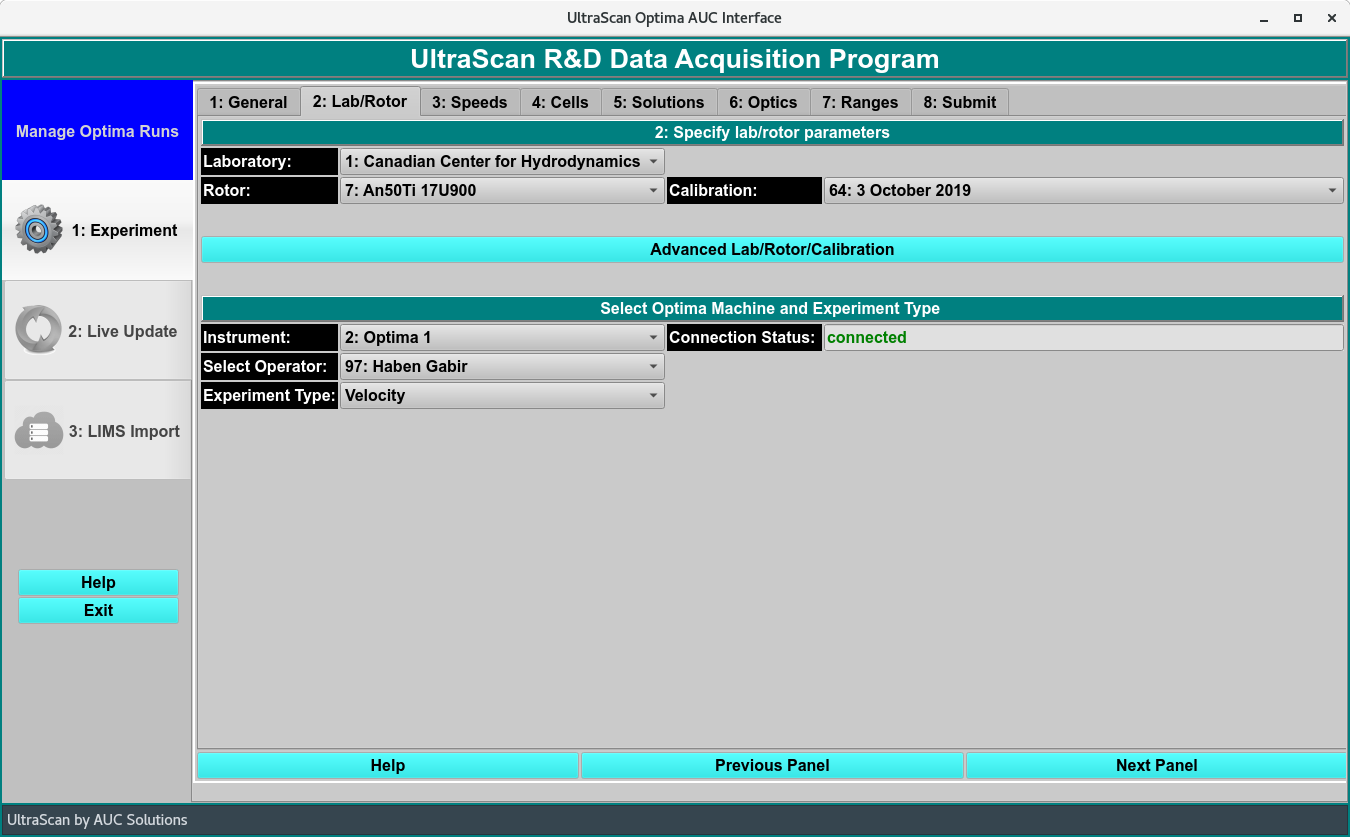
Lab and Rotor Panel
Lab/Rotor Functions:
Laboratory: |
Pull down a list and release on the laboratory to which the experiment belongs. |
Rotor: |
Pull down a list and release on the type of rotor to be used in the experiment. |
Calibration: |
Pull down a list and release on the calibration (in date string form) for use in the experiment. |
Advanced Lab/Rotor/Calibration: |
Click on this button to open a full Rotor dialog in which laboratory/rotor/calibration information may be created/selected. Selections in that dialog will be reflected in the other Experiment Rotor Panel GUI elements. |