Report Chooser/Generator
This module is launched from the US main window using the Utilities > Report Generator menu item. It enables the user to create and view a composite report generated from selections of individual analysis program reports and plots. Upon launch, selection of a Run (or all runs) populates a data tree with reports from which to select the components of the composite report. A click on the View or the Save button generates the report, which can be viewed in a browser and printed. Both the composite report HTML and all the component reports and plots are copied to a new folder so that the page is fully self-contained, can be archived, and can be viewed in the future.
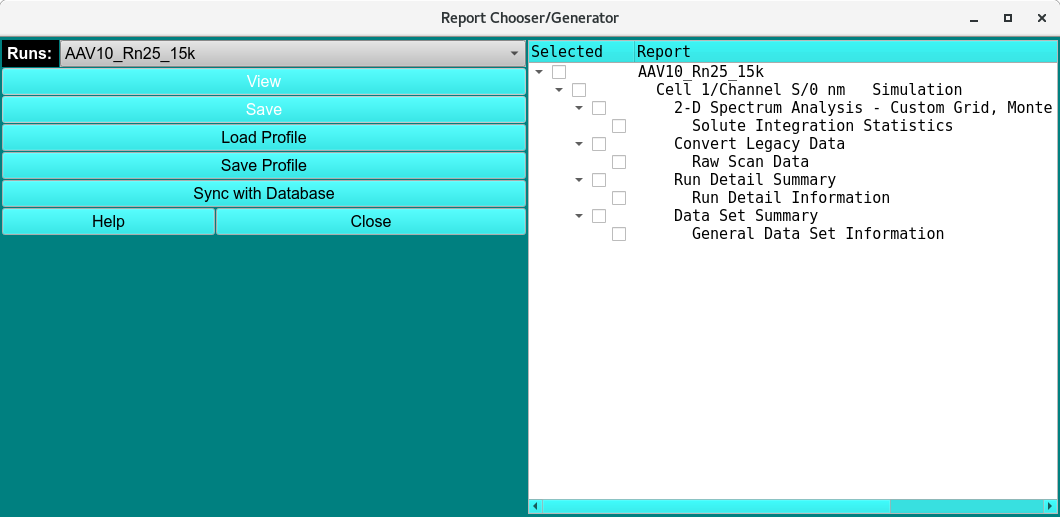
Manage Data Functions:
Runs: |
Select a run identifier to present reports for that run or select all to show all available reports of all runs. |
(data tree selections) |
Select reports and plots for the composite by checking the box to the left of an item. A check or uncheck of an item above the final (report/plot) tree level selects or de-selects all lower-level items. A check box with a shaded mark indicates that some (not all) of the item’s descendant items have been selected. Click on the + or - boxes to expand or collapse tree portions. |
View |
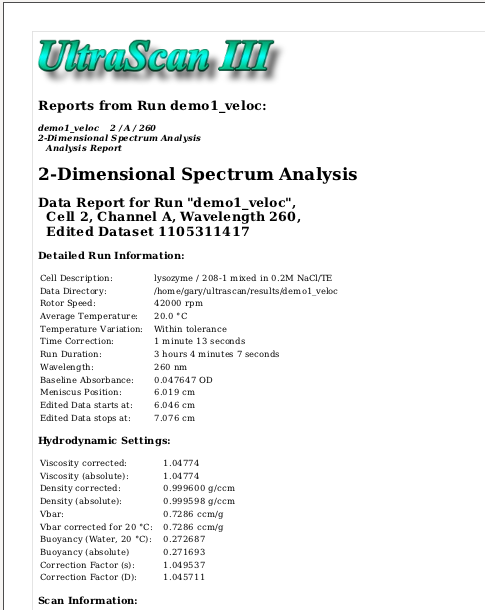
Once selections are as desired, click on this button to generate the composite report and view it in the configured browser. See a Sample composite report view. A print within the browser can be used to generate hardcopy or a PDF version. Component reports and plots will start on page boundaries. |
Save |
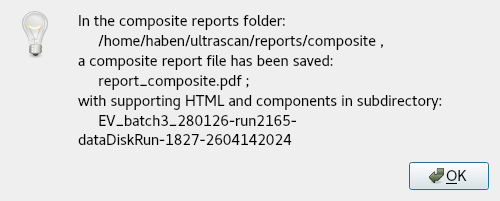
Click this button to generate the report, but without being immediately taken to a view of it. You will receive a Notice of report save. |
Load Profile |
Make component report selections by means of a previously saved selection profile. Click this button to initiate a Profile Load Dialog. |
Save Profile |
Save component report selections for later use by clicking this button to initiate a Profile Save Dialog. Note that you need only specify the base name for the saved file. An rs_ prefix and .xml extension will be automatically added. |
Help |
Display this and other documentation. |
Close |
Close all windows and exit. |
Item Row Context Menu Options:
Right-mouse-button clicking on a data tree row displays a context menu that applies to the row item.
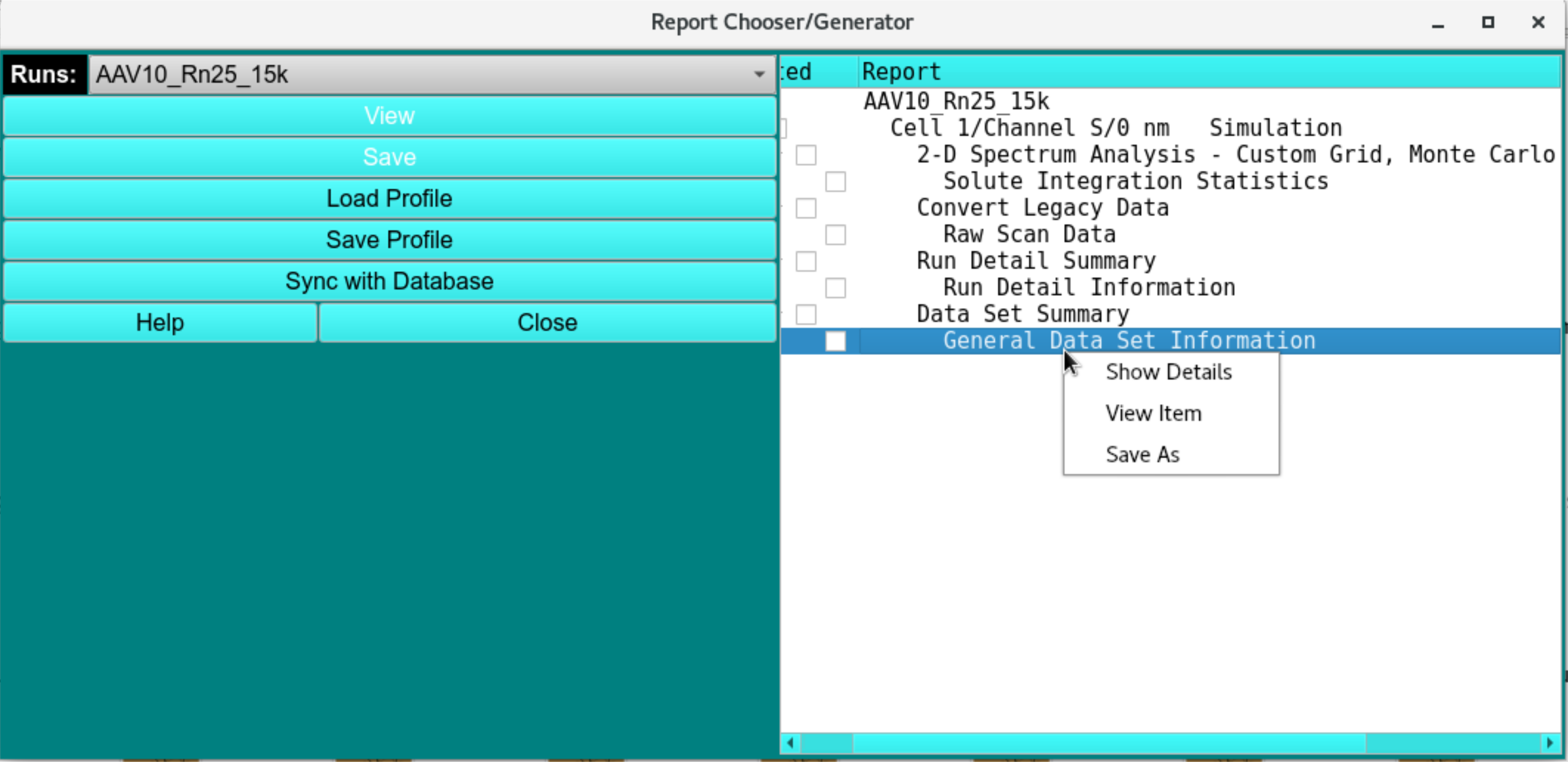
Dialog items:
Show |
Details Release on this menu item to see an Item Details Window. |
View |
Item Release on this menu item to view an Item View Window. This is a way to preview individual items that are potential candidates for the composite report. |
Save |
As Save a copy of the currently selected item. The location and name of the file copy may be chosen in the resulting standard file dialog. |
Saved Report