Select Solution Tab
Panel Tab Options:
Select Solution - A panel whose primary purpose is to select a Solution to return to the caller.
Enter New Solution - A panel whose primary purpose is to enter a brand new Solution, defined mostly by specifying components and each one’s concentration.
Edit Existing Solution - A panel whose primary purpose is to change non-hydrodynamic characteristics of an already existing Solution.
Settings - A panel whose primary purpose is to set Database-or-Disk input and to select the investigator.
Select Solution Panel:
Using this panel, you can select a solution in the current database or on the local disk. Most commonly, you select a solution in the provided list and click the Accept button to return it to the caller.
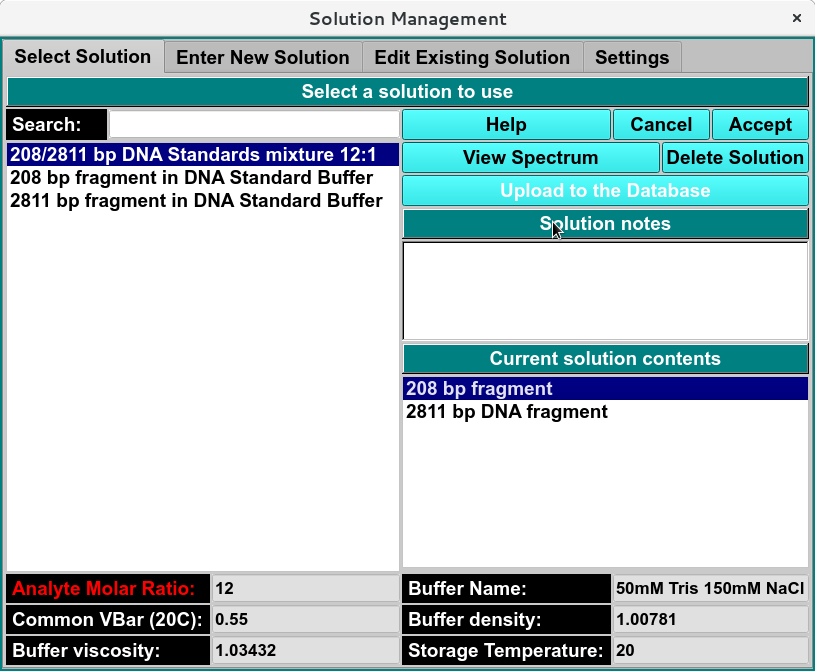
Select Solution Window
Note
local solutions can be uploaded by clicking upload to the Database button and view solution notes.
Select Solution Functions:
Search |
use to search by enter all or portion of the title. |
Help |
Access this help documentation for the Solution Management module |
Cancel |
Close window and return to previous page. |
Accept |
Return to previous page with selected solution. |
Delete Solution |
Delete selected solution. |
Solution Notes |
display notes added to solution |
Current Solution Contents |
Describe the analyte component(s) of solution. |
Analyte Molar Ratio |
Once a solution has been selected and a solution contents item (analyte) has been chosen, use this to enter the comparative amount of that analyte that is in the solution. |
Buffer Name: |
selected buffer name. |
Common VBar(20C): |
The common vbar at a temperature of 20 degrees C. |
Buffer Density |
The density of the currently selected buffer. |
Buffer viscosity: |
The viscosity of the currently selected buffer. |
Storage Temperature: |
The average temperature of all the runs. |