MWL Pre-Fit Species Simulation
Generate simulation based on mw- runs
This module is used to simulate a multi-wavelength experiment using Finite Element (ASTFEM) or Finite Volume (ASTFVM) methods. Multi-Wavelength 2DSA-IT models are loaded from the database. Simulation parameters are specified, the same as the experimental parameters. A simulation is then calculated and displayed. The simulation may be saved as a synthetic version of raw experimental data with a ISSF- prefix added. This module generates simulations with synchronous time grid based on the 2DSA-IT models loaded.
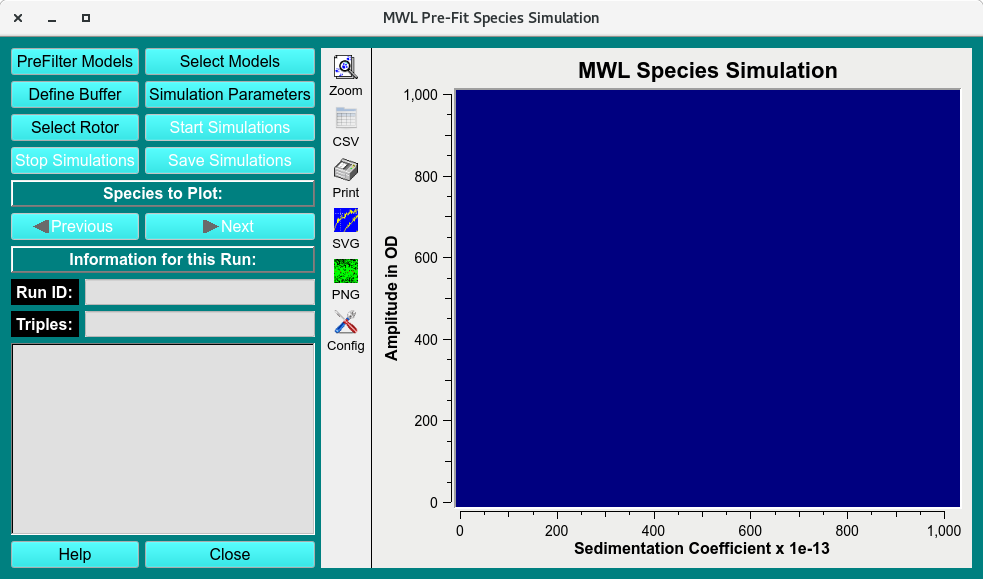
MWL Pre-Fit Species Simulation main window
MWL Pre-Fit Species Process:
PreFilter Models: Select the pre-filter to find the distribution models.
Select Model: Load the 2DSA-IT models on which the simulation will be based.
Define Buffer: Optionally (and rarely), you may wish to specify buffer conditions. This may be necessary if your intention is to simulate and save an artificial version of a specific experimental data set. Normally, the buffer conditions are those of water at 20 degrees Centigrade.
Simulation Parameters: Secondly, open a dialog to specify parameters governing the simulations.
Select Rotor: Load the rotor and rotor calibration used in the pre-filter models and select the simulation rotor.
Start Simulation: Initiate calculation of the specified simulation. (If an error has occurred, users can stop the simulation by clicking Stop Simulation)
Save Simulations After simulation, users can save the resulting ISSF auc file to disk for later import.
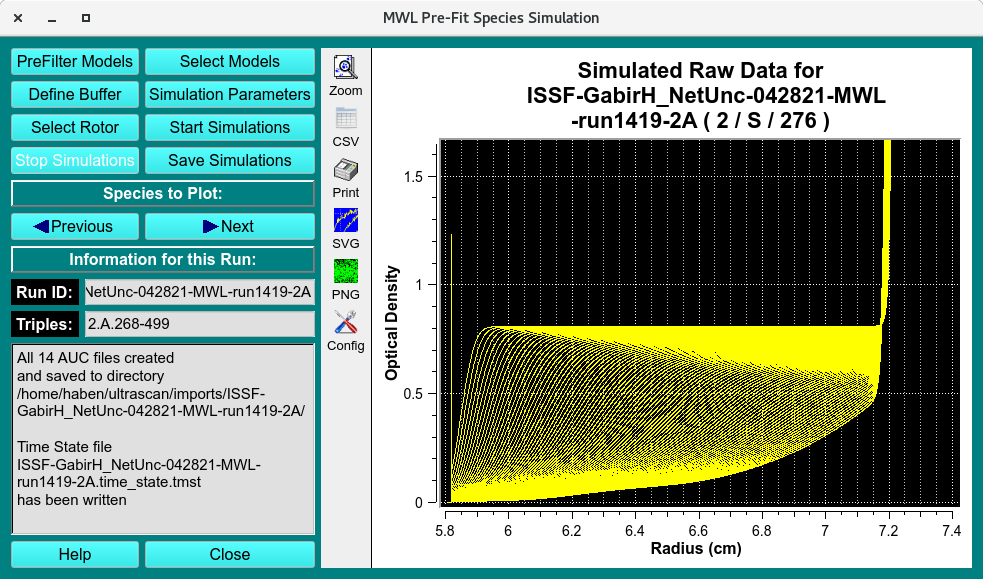
Simulated Dataset
MWL Pre-Fit Species Functions:
PreFilter Models |
Load a run dataset as a Pre-filter using the “Select Run(s) as Models Pre-Filter (DB)”. |
Select Models |
Select the distributions to base simulation on in the Load Distribution Model(s). Click and drag to select multiples model distributions. Click on Select Models first to select models across runs. |
Define Buffer |
Open the Buffer Management dialog to select the buffer the simulations will use for density and viscosity values. |
Simulation Parameters |
Click to set the Simulation Parameters profile. |
Select Rotor |
Click to open the Rotor Management dialog. Set the Rotor type and the associated calibration profiles for the simulation. |
Start Simulations |
Once all parameters have been entered, click to start simulation. |
Stop Simulations |
Click to stop simulation. |
Save Simulations |
Save simulation once generated. Simulations are saved in $HOME/ultrascan/imports/ |
Run ID: |
The Run name automatically generated for simulations. Simulations will have the “ISS-” prefix. |
Triple: |
The Triple initially loaded using Select Models. |
Help |
The Help documentation of this “MWL Pre-Fit Species Simulation” Module. |
Close |
Close window. |